DISH POS App – Downloading the new POS app
What is this new POS App? This POS App is the newest application used in combination with DISH POS, with this application the restaurant's staff can order products, pay for an order (SoftPOS/Tap to P…
Table of Contents
What is this new POS App?
This POS App is the newest application used in combination with DISH POS, with this application the restaurant's staff can order products, pay for an order (SoftPOS/Tap to Pay Connected) or perform other actions. This application will completely replace the current Webapp that is installed on devices.
| Old/ Current POS App | New POS App |
|
|
|
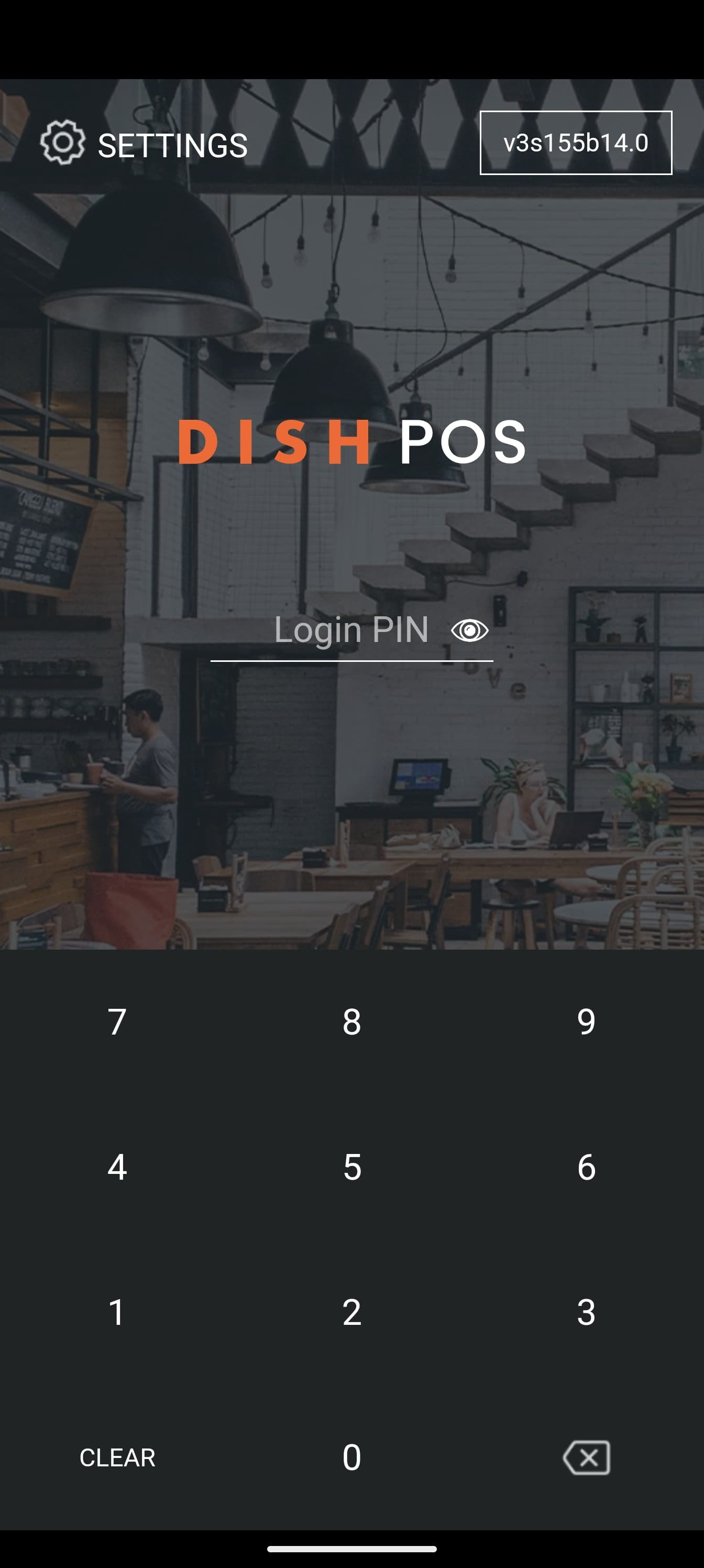
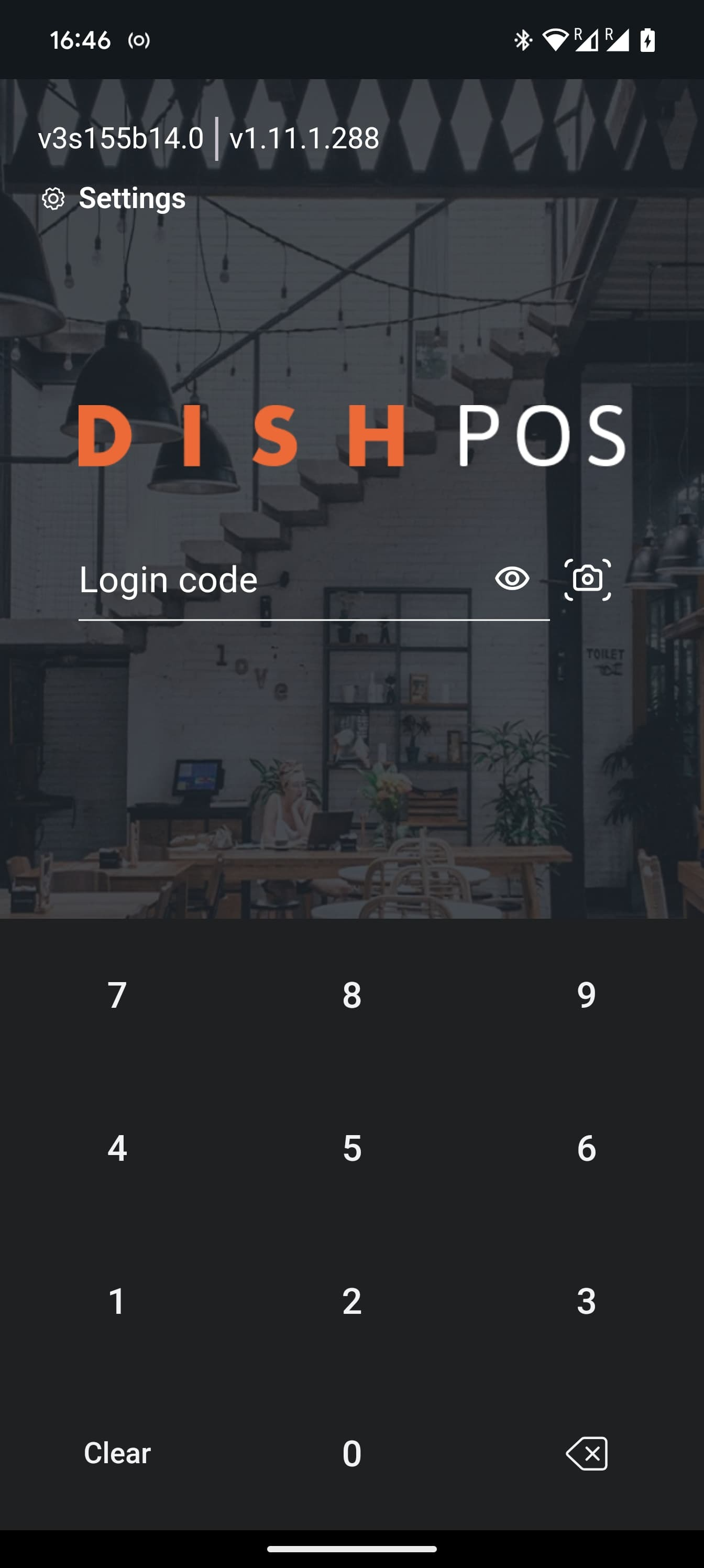
Install the new POS App out of the Sunmi store
You can find the new POS App on the Sunmi store:
This option only applies to the Sunmi L2s Pro.
Download the app through the browser
It is possible to download the new POS app into your device:
- Open a browser on your POS device
- Enter the local IP address of the server followed by :8080/booq/posapp
i.e. 192.168.1.201:8080/booq/posapp - The application will be downloaded
- Install the application
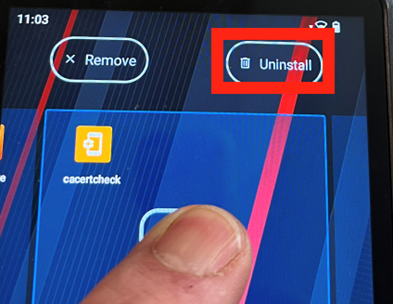
If the old webapp is installed, uninstall the webapp to avoid that the webapp is used by mistake. To uninstall, tap a long press on the webapp icon. Then there are two options how to uninstall. On some versions you see the Uninstall option in the popup menu. If you only see App Info, you need to move the icon and then a bin icon appears on the top.
- Open the application
- Go to settings
- Click on POS device name
- Change the POS name into something recognisable. I.e. Handheld 1 m123456 and press OK
- Click on Server name/IP address
- Insert the local IP address of the server. i.e. 192.168.1.201 and press OK
- Notice the message at the bottom of the screen saying “App is successfully registered…”
Working with the app
- The new POS app has nearly the same interface as the webapp. There are some differences in the look. For example, the bright mode instead of the dark mode of the webapp.
- The new POS app supports more features which are not available in the webapp like the Tap to Pay feature.