Contact Us

If you still have questions or prefer to get help directly from an agent, please submit a request.
We’ll get back to you as soon as possible.

Please fill out the contact form below and we will reply as soon as possible.

  • POS
  • Pay
  • Reservation
  • Order
  • Website
  • English (UK)
    GB English (UK)
    FR French
    DE German
    ES Spanish
    IT Italian
    NL Dutch
    PL Polish
    CS Czech
    SK Slovak
    HU Hungarian
    RO Romanian
    HR Croatian
    PT Portuguese
  • Log in
  • Updates
  • POS
  • Pay
  • Reservation
  • Order
  • Website
  • English (UK)
    GB English (UK)
    FR French
    DE German
    ES Spanish
    IT Italian
    NL Dutch
    PL Polish
    CS Czech
    SK Slovak
    HU Hungarian
    RO Romanian
    HR Croatian
    PT Portuguese
  • Log in
  • Home
  • POS
  • Comprehensive guide
  • Configure your POS
  • General

Printers- Setting up a buzzer/zoomer

In this tutorial we are going to show you how to set up a buzzer/zoomer.. Step-by-step instructions. In case of using a separate Kitchen or Bar printer, it is possible to attach a buzzer. This buzzer…

Table of Contents

In this tutorial we are going to show you how to set up a buzzer/zoomer Step-by-step instructions 🎓 Downloadable PDF We want your feedback

In this tutorial we are going to show you how to set up a buzzer/zoomer

Step-by-step instructions

In case of using a separate Kitchen or Bar printer, it is possible to attach a buzzer.
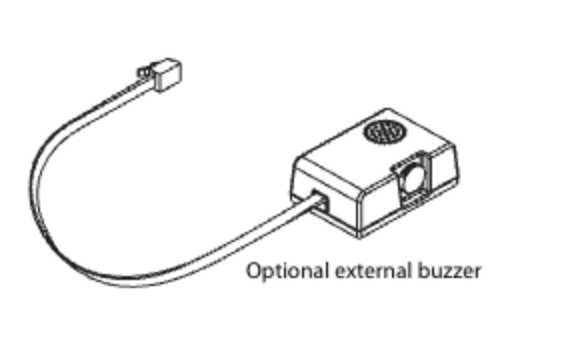
This buzzer will produce a loud beep every time an order is being placed. 

Remark: A printer only has 1 rj-11 port to connect either a cash drawer or a beeper, therefore this cannot be used on the receipt printer if a cash drawer has been connected. 

 
  1. Go to General. 
  2. Click on Printers. 
  3. Press the pencil icon to edit your printer. 
  4. Select dropdown for Driver. 
  5. Select the EPSON TMT-88 GROOT driver.
  6. Save changes by cliquing on Save.
  7. Send these changes to the server via General -> General -> Send 

Keep in mind, since changes have been made, you must send them to your system by navigating to the general settings.

 
  1. Go to General
  2. Then navigate to the sub-category General
  3. From there, click on Send to transmit the changes to your system

For further details, please check out our article: How do I send changes from the Backoffice to my POS?


🎓 Downloadable PDF

We want your feedback

Your opinion is very important to us. Did you like this tutorial? Was it helpful? Rate it using the emojis down below.

install alert system

Was this article helpful?

Yes
No
Give us feedback about this article

Contact Us

If you still have questions or prefer to get help directly from an agent, please submit a request.
We’ll get back to you as soon as possible.

Please fill out the contact form below and we will reply as soon as possible.

Related Articles

  • Facilities- Disabling automated ticket printing
Logo DISH
Want to learn more
about our solutions?
Book a demo
App Store
Google Play Store
  • About
  • Contact
  • Sitemap
  • Careers
  • Home
English International
© Copyright dish.co 2025
  • Imprint
  • Terms of Use
  • Privacy Policy
  • Cooperation Partner
  • Privacy Settings
Expand