Cash Register Inspection
In this tutorial, we will guide you through what to expect during a cash register inspection. Step-by-step instructions. The inspector will identify themselves with a service ID or may perform an ano…
In this tutorial, we will guide you through what to expect during a cash register inspection.
Step-by-step instructions
The inspector will identify themselves with a service ID or may perform an anonymous test purchase.
- The inspector has the right to check your POS, records, and documents within your business premises.
- You are allowed to involve your tax advisor, but the inspector is not required to wait for their arrival.
- You must assist the inspector as part of your duty to cooperate.
- If there is a valid suspicion, or you fail to cooperate, an external audit may be conducted. A written transition from cash register inspection to external audit is required.
- At the end of the inspection, you will receive a protocol summarizing the results.
Documents to have ready:
• Proof of purchase or contract for the TSE (technical security equipment).
• Complete procedural documentation.
• Records from the POS system (DSFinV-K and tar format).
• Unique identification for each cash register.
• Contact information for authorized persons, including your tax advisor and cash register provider.
Procedure with Fiskaltrust
In the following section, we will show you how to perform exports in the Fiskaltrust portal for inspections.
Steps:
- Log into the Fiskaltrust portal (or navigate to the customer account) on a computer.
-
Go to Configuration → Queue:
- Identify the correct queue and click on the Export button.
- Set the Export Range (start and end dates as requested by the inspector).
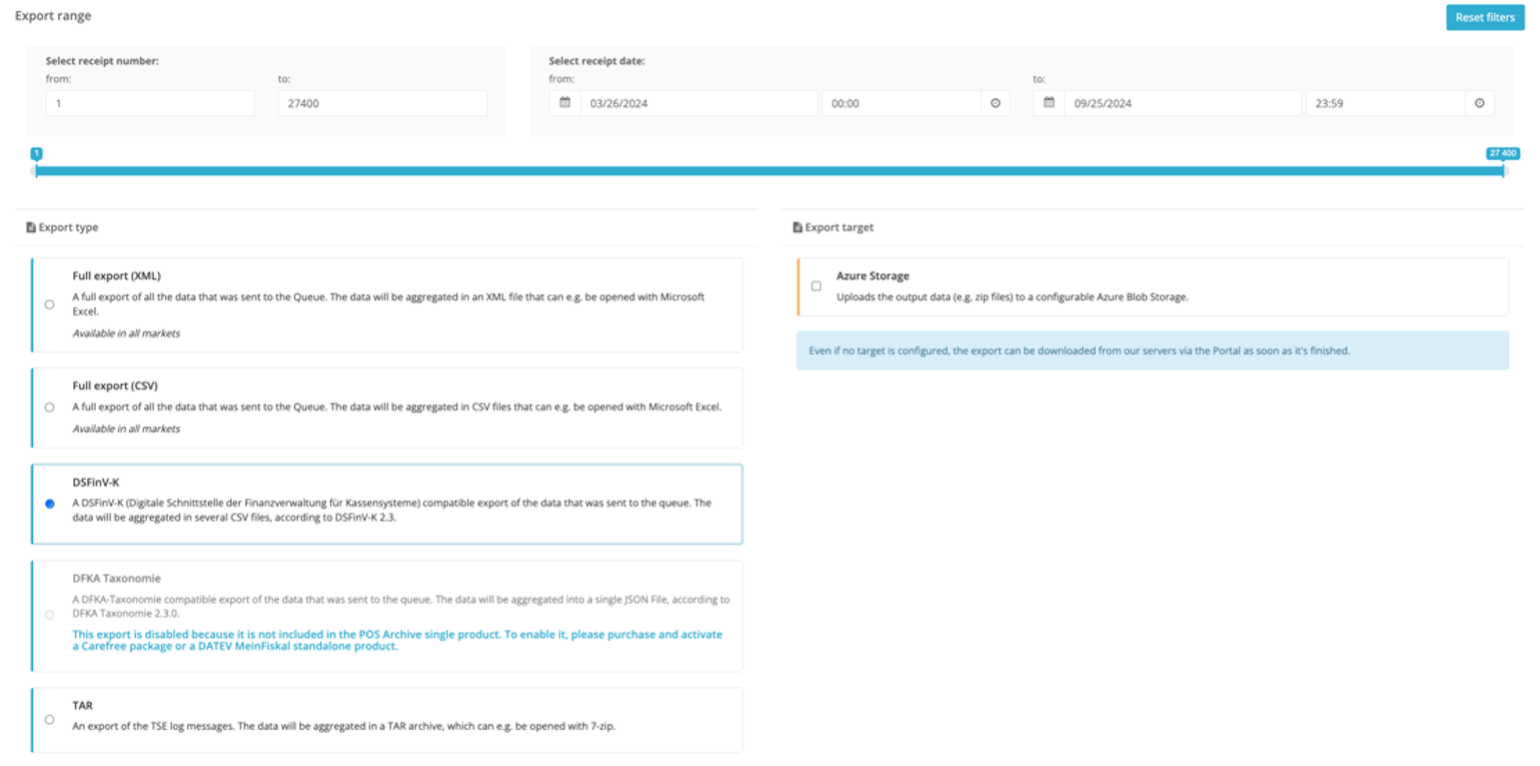
Do not click on the receipt number fields, as this may adjust the date/time.
- Select DSFinV-K as the export format (no export target needed).
- Select DSFinV-K as the export format (no export target needed).
Click on Start Export.
Tools → Exports
The portal may respond slowly, so wait until the page appears.
- Go back to Configuration → Queue:
- Again, identify the correct queue and click the Export button.
- Set the Export Range, exactly as in step 2.
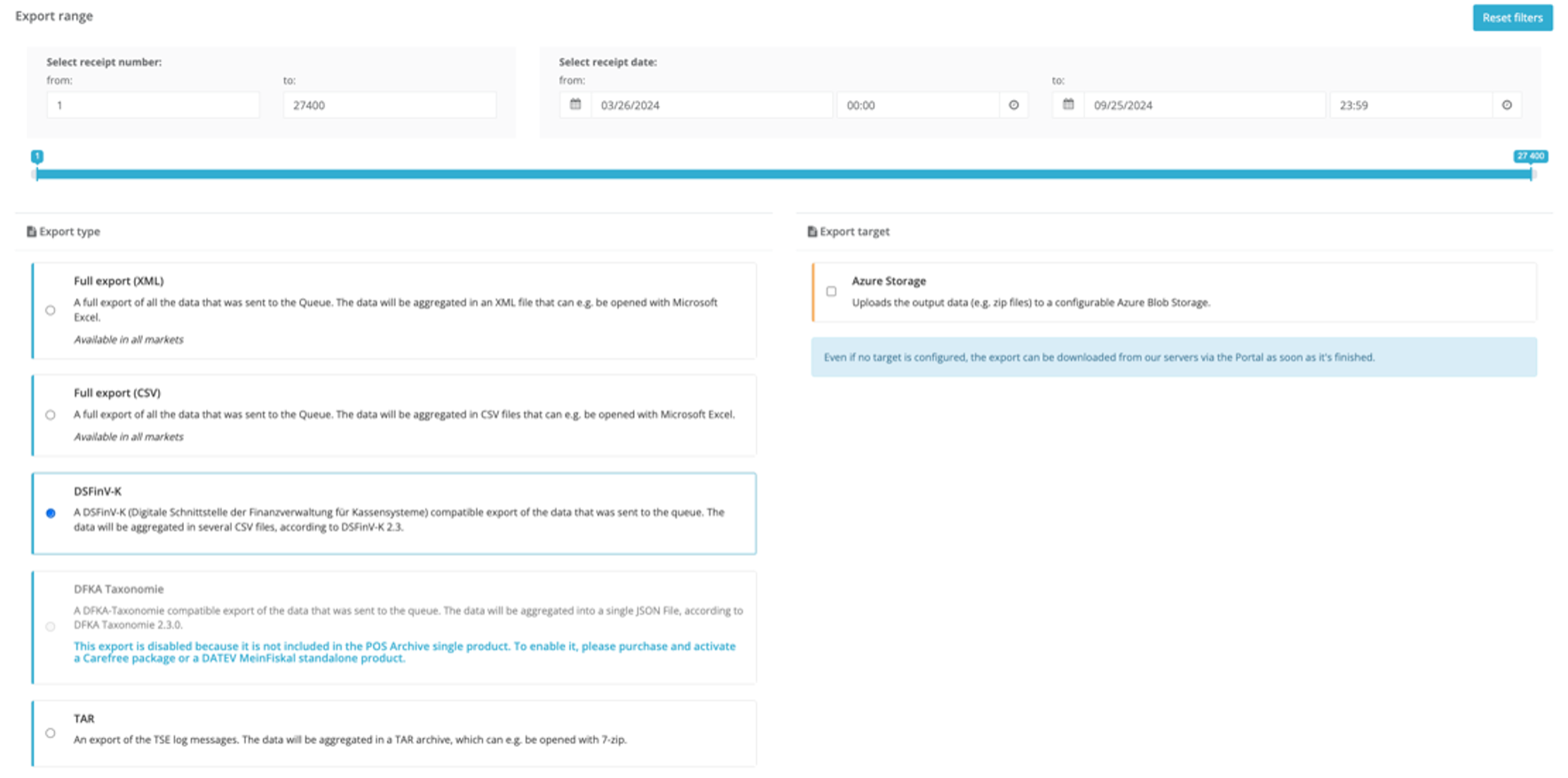
Do not click on the receipt number fields, as this may adjust the date/time.
- Select tar as the export format (no export target needed).
- Click on Start Export.
Tools → Exports
The portal may respond slowly, so wait until the page appears.
- Navigate to Tools → Export.
- Wait for both exports to complete.
The status will change from In Progress to Complete.
This doesn’t happen automatically, so you may need to reload the page.
- Click the arrow (>) next to the tar export to expand the row.
- Click on the row containing the zip file and download it.
- Click the arrow (>) next to the DSFinV-K export to expand the row.
- Click on the row containing the zip file and download it.
- Provide both zip files to the inspector (via email or USB stick).
We want your feedback
Your opinion is very important to us. Did you like this tutorial? Was it helpful? Rate it using the emojis down below.