DISH POS Printer – Troubleshooting Decision Tree
Table of Contents
This guide helps you to troubleshoot the most common printer issues in DISH POS. Follow the steps below based on the printer model installed in the merchant location.
Supported printer models:
- Epson TM-m30
- DURAPOS
Epson TM-m30
This guide helps you solve the most common printer issues step by step. Follow the questions and actions until your printer works again.
Make sure that your printer is Epson TM-m30.

That means that the printer is not powered. So please check:
=> Power cable connection
=> Power adapter
=> Wall outlet or power strip
if all are working and still no power → the printer may be defective.
➡️ Please contact Support.

This indicates a network connection issue. Please check:
=> Network (LAN) cable connection
=> Cable connectors
=> Router/switch the printer is connected to
If network LED stays off → contact support.
➡️ Go to Step 2.
➡️ Go to Step 3.
Check the paper roll:
=> Insert paper correctly (thermal side facing the print head).
=> Use Epson-compatible thermal paper.
If paper is correct but still blank: Clean the print head with a lint-free cloth.
If issue persists → the thermal print head may be damaged.
➡️ Request a replacement device.
Open cover and remove jammed paper.
Check for torn pieces inside.
Reload paper properly, don’t overload the roll.
If jams keep happening ➡️ Contact support.
➡️ Go to Step 4.
Use high-quality thermal paper.
Adjust print density in settings.
Clean the print head (slightly damp lint-free cloth):
- Open the flap and remove the paper.
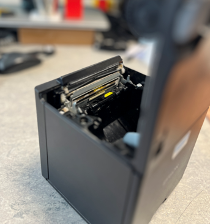
- Wrap a clean cloth around your finger, slightly dampen it, and wipe the thermal head firmly.
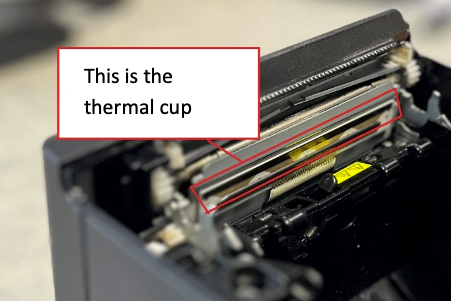
- Dry the thermal head with a clean, dry cloth.
Still poor? Try a new paper roll.
If nothing improves ➡️ Contact support.
➡️ Go to Step 5.
Look up the error code in the Epson TM-m30 manual.
Check cover is closed and paper is loaded.
Restart the printer.
If error persists ➡️ Contact support.
➡️ Go to Step 6.
Remove paper/debris in the cutter area.
Restart printer.
Always use the feed button, never pull receipts.
If cutter still fails ➡️ Contact support.
➡️ Go to Step 7
Lower print density in settings.
Avoid large data print jobs.
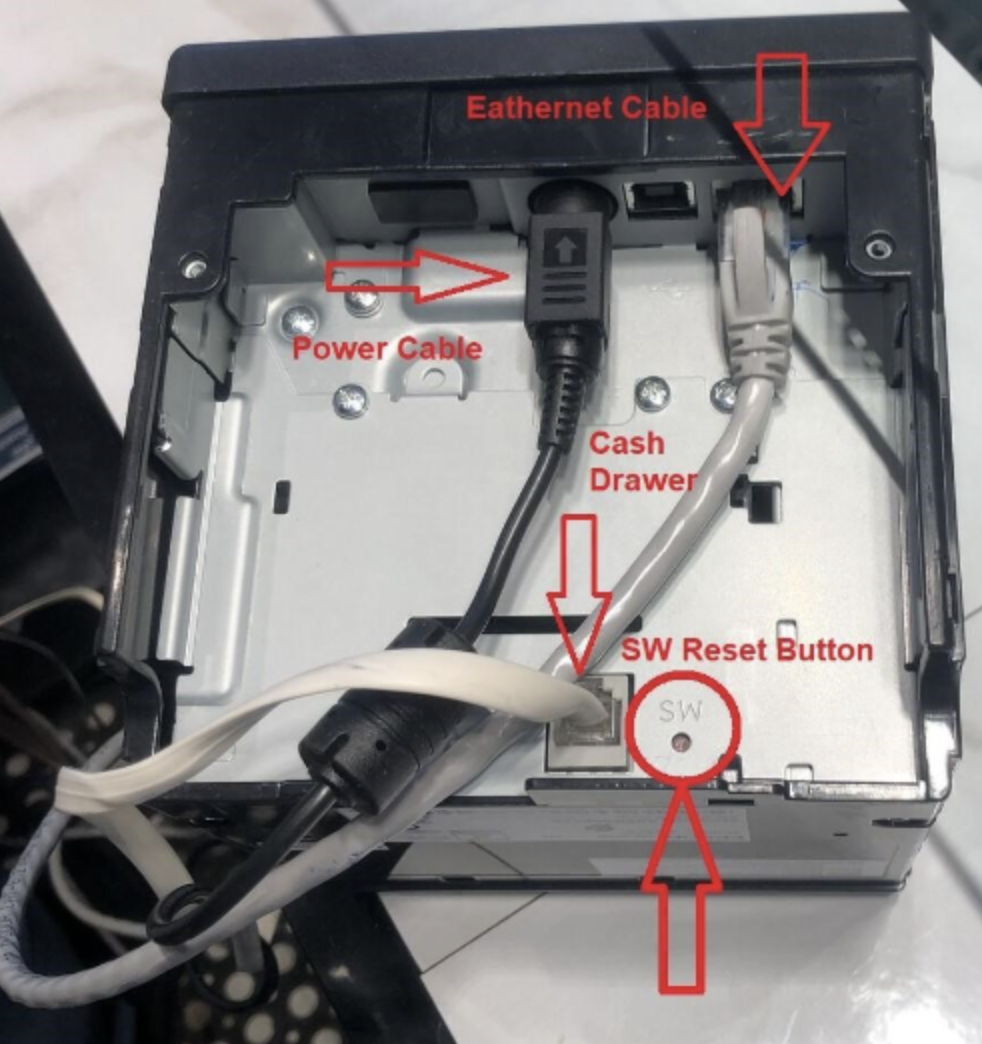
Update firmware:
- Turn off printer.
- Hold reset button (back of printer) with paperclip.
- Power on while holding reset until test slip prints.
Still slow ➡️ Contact support.
Then your printer is functioning normally.
If you’ve tried all the steps and the issue persists, feel free to contact Support.
If under warranty, free replacement or repair is covered.
Incorrect print format means for example that the margin are too wide or the spacing appears to be incorrect.
Go to the Backoffice and check the printer driver. This is normally caused either by wrong or outdated drivers or could also be by incorrect printer settings in the POS Terminal.
Does it work?
You are all set!
If it still doesn't work, then the printer may be defective
➡️ Please contact Support.
You are all set!
DURAPOS Printer
This guide helps you solve the most common printer issues step by step. Follow the questions and actions until your printer works agaun.
Make sure that your printer is DURAPOS.

That means that the printer is not powered. So please check:
=> Power cable
=> Power adapter
=> Power outleT
If all are working and still no power → the printer may be defective
➡️ Please contact Support.
Incorrect print format means for example that the margin are too wide or the spacing appears to be incorrect.
Go to the Backoffice and check the printer driver. This is normally caused either by wrong or outdated drivers or could also be by incorrect printer settings in the POS Terminal.
Does it work?
You are all set!
If it still doesn't work, then the printer may be defective
➡️ Please contact Support.
You are all set!