Contact Us

If you still have questions or prefer to get help directly from an agent, please submit a request.
We’ll get back to you as soon as possible.

Please fill out the contact form below and we will reply as soon as possible.

  • POS
  • Pay
  • Reservation
  • Order
  • Website
  • English (UK)
    GB English (UK)
    FR French
    DE German
    ES Spanish
    IT Italian
    NL Dutch
    PL Polish
    CS Czech
    SK Slovak
    HU Hungarian
    RO Romanian
    HR Croatian
    PT Portuguese
  • Log in
  • Updates
  • POS
  • Pay
  • Reservation
  • Order
  • Website
  • English (UK)
    GB English (UK)
    FR French
    DE German
    ES Spanish
    IT Italian
    NL Dutch
    PL Polish
    CS Czech
    SK Slovak
    HU Hungarian
    RO Romanian
    HR Croatian
    PT Portuguese
  • Log in
  • Home
  • POS
  • Comprehensive guide
  • Use your POS system
  • payment

Receipt- sending my costumer a digital receipt

In this article, we are going to show you how to send your customer a digital receipt. In order to use this functionality you will have to set up the digital receipt function in your back-office firs…

Table of Contents

In this article, we are going to show you how to send your customer a digital receipt 👆🏼 Try it yourself Steps 🎓 Step-by-Step Instructions We want your feedback

In this article, we are going to show you how to send your customer a digital receipt

In order to use this functionality you will have to set up the digital receipt function in your back-office first. Click here to find out more on how to activate the Digital Receipt.


👆🏼 Try it yourself

Steps

  1. First, select the corresponding table.
  2. Once your customer is ready, chose the payment method he would like to pay with. In this example we chose cash.
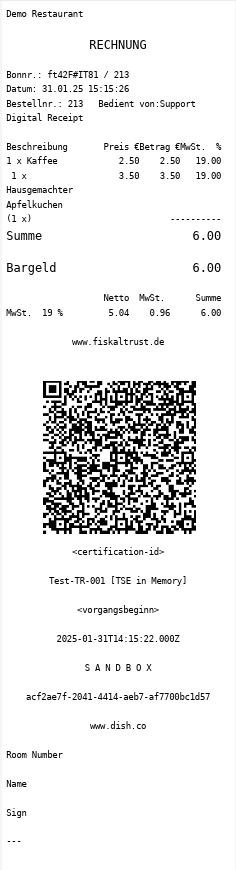
  3. If you have set up the digital receipt in the back-office (click here for how to set up the digital receipt) a QR code will appear your customer can scan to receive his receipt digitally.

Here is an example of the digital receipt your customer will be redirected to:
  1. In case you need a print-out, tap PRINT RECEIPT.
  2. Once everything is set, tap OK to close the table.

That's it! You have finished the tutorial and now know how to send your customer a digital receipt.

🎓 Step-by-Step Instructions

We want your feedback

Your opinion is very important to us. Did you like this tutorial? Was it helpful? Rate it using the emojis down below.

electronic invoice transmit receipt

Was this article helpful?

Yes
No
Give us feedback about this article

Contact Us

If you still have questions or prefer to get help directly from an agent, please submit a request.
We’ll get back to you as soon as possible.

Please fill out the contact form below and we will reply as soon as possible.

Related Articles

  • Registering cash- transactions for the cash book
  • Tip- entering tip when cashing out
  • Receipt- activating the Digital Receipt
  • Receipt- getting the Factura Simplificada (Spain only 🇪🇸)
Logo DISH
Want to learn more
about our solutions?
Book a demo
App Store
Google Play Store
  • About
  • Contact
  • Sitemap
  • Careers
  • Home
English International
© Copyright dish.co 2025
  • Imprint
  • Terms of Use
  • Privacy Policy
  • Cooperation Partner
  • Privacy Settings
Expand